 Tiếng Việt
 English
 中文
中文 Español
 हिन्दी
 Français
 Português
 Русский
 Deutsch
 日本語
日本語 한국어
한국어 Italiano
 Bahasa Indonesia
 ไทย
ไทย বাংলা
বাংলা ລາວ
ລາວ မြန်မာ
 العربية
 فارسی
فارسی اردو
اردو Українська
 Română
 Azərbaycan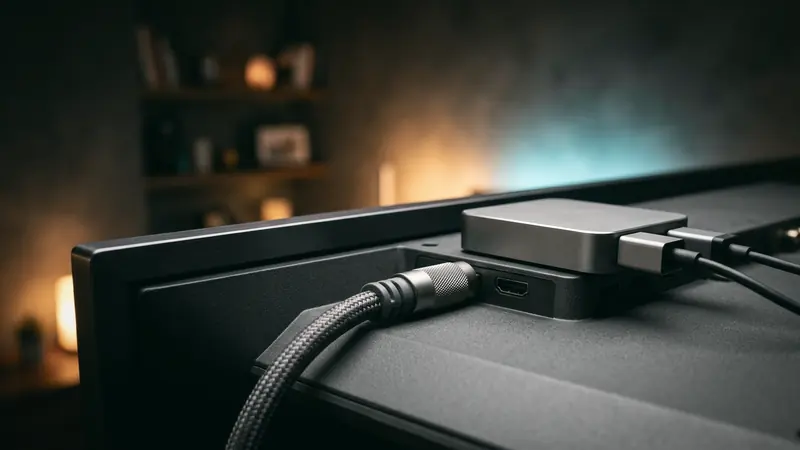
While modern smart televisions come equipped with app stores and network settings, millions of households still rely on dependable older televisions or conventional monitors that lack native application support. Whether you have an older LCD screen in a bedroom or a reliable plasma panel in the living room, you cannot simply download an application directly onto the display firmware.
However, lacking smart capabilities does not mean you are locked out of secure streaming. By routing network traffic through an external intermediary device—such as a modern HDMI streaming dongle, a Windows computer, or a configured home router—you can enjoy private, unrestricted media playback on any screen with an HDMI port.
Why Non-Smart TVs Need an External VPN Setup
Understanding how display hardware interacts with modern streaming networks makes selecting the appropriate setup straightforward.
Understanding Hardware Limitations on Older Displays
A non-smart TV functions strictly as an audio-visual output terminal:
- No Native Operating System: Older displays possess basic firmware designed solely for tuning broadcast channels and selecting input ports (HDMI, Component, RCA). They lack an execution environment for third-party network software.
- No Cryptographic Processing: Encrypting high-throughput media streams requires dedicated CPU cycles. Older television chipsets lack the mathematical instructions necessary to process modern encryption ciphers without severe latency.
- External Dependency: To protect the connection, all network encryption and routing decisions must occur on a secondary device before audio and video signals enter the television's HDMI port.
The Advantages of Large-Screen Tunneling
Routing your living room entertainment through an encrypted tunnel delivers essential benefits:
- ISP Throttling Prevention: Internet Service Providers routinely inspect video streaming traffic and throttle bandwidth during peak evening hours, causing frustrating buffering. Encrypting traffic prevents providers from distinguishing video packets from general web browsing.
- Public Wi-Fi Protection: If you travel with an older TV or display in a temporary rental, encrypting traffic isolates your streaming sessions from untrusted local networks.
Method 1: Using an Android TV Streaming Box
The most practical, cost-effective, and user-friendly way to equip any non-smart television with network protection is through an external HDMI streaming device.
Connecting the Streaming Device to the HDMI Port
Modern media adapters—including Google TV dongles, Android TV boxes, and Chromecast with Google TV—transform any legacy display into a full-featured smart platform:
- Locate an available HDMI port on the back or side of your television.
- Insert the streaming device directly into the HDMI port, or use an included extension cable.
- Connect the device's USB power adapter to a wall outlet to ensure stable power delivery.
- Switch your television's input source to the corresponding HDMI channel using your TV remote.
Installing Dedicated Applications on Google TV
Once the external device is connected to your home Wi-Fi network:
- From the home screen, navigate to the Apps section.
- Search for the dedicated VPNRice for Android TV application in the Google Play Store.
- Install the application and open it using the device remote.
- Select your preferred high-speed server cluster and establish an encrypted session.
- All streaming applications installed on the streaming box will now automatically route their traffic through the secure tunnel.
Method 2: Sharing a Virtual Router from a Windows PC
If you do not own a standalone streaming media box, a Windows 11 or Windows 10 computer can act as a secure Wi-Fi router for your media player or gaming console.
Configuring a Protected Mobile Hotspot on Windows
Windows features built-in virtual network sharing that can broadcast an encrypted Wi-Fi connection:
- Connect your PC to the Internet and establish an encrypted connection using the dedicated VPNRice for Windows client.
- Open Windows Settings, select Network & internet, and toggle on Mobile hotspot.
- Under Share my internet connection over, select Wi-Fi. Click Properties to configure a secure network name and password.
Connecting the Television to the Encrypted Wi-Fi Stream
To route device traffic through your computer's tunnel:
- Open Windows Control Panel and navigate to Network and Sharing Center → Change adapter settings.
- Right-click your active VPN network adapter, choose Properties, and switch to the Sharing tab.
- Check Allow other network users to connect through this computer's Internet connection and select your newly created virtual Wi-Fi adapter from the dropdown menu.
- On your television's connected media device or console, open network settings, scan for Wi-Fi networks, and connect to the hotspot you configured on Windows.
Method 3: Whole-Home Encryption via Router Setup
For a permanent solution that requires no individual device configuration, you can establish an encrypted tunnel directly on your primary home router.
Advantages and Router Hardware Requirements
Installing a VPN directly on your home gateway provides comprehensive coverage:
- Zero Device Configuration: Every television, streaming stick, tablet, and smart home appliance connected to the router automatically inherits encrypted protection.
- Hardware Consideration: Ensure your router firmware supports modern tunneling protocols like WireGuard. Older routers with weak processors may limit maximum speeds under OpenVPN, whereas modern chipsets handle WireGuard streams effortlessly. You can review network routing performance metrics in our technical analysis of VPN speed and ping dynamics.
Testing Big-Screen Streaming and Network Privacy
After completing your preferred connection method, verify that your display setup is functioning cleanly and that your physical location remains concealed.
You can check what websites see about your connection with our free What is my IP tool. Furthermore, confirming that browser interfaces do not disclose local network addresses is essential; our guide to WebRTC and IP leaks provides a complete diagnostic checklist.
On public Wi-Fi, a VPN encrypts the traffic between your device and the VPN server, so others on the same network cannot read it. Get VPNRice.