 Tiếng Việt
 English
 中文
中文 Español
 हिन्दी
 Français
 Português
 Русский
 Deutsch
 日本語
日本語 한국어
한국어 Italiano
 Bahasa Indonesia
 ไทย
ไทย বাংলা
বাংলা ລາວ
ລາວ မြန်မာ
 العربية
 فارسی
فارسی اردو
اردو Українська
 Română
 Azərbaycan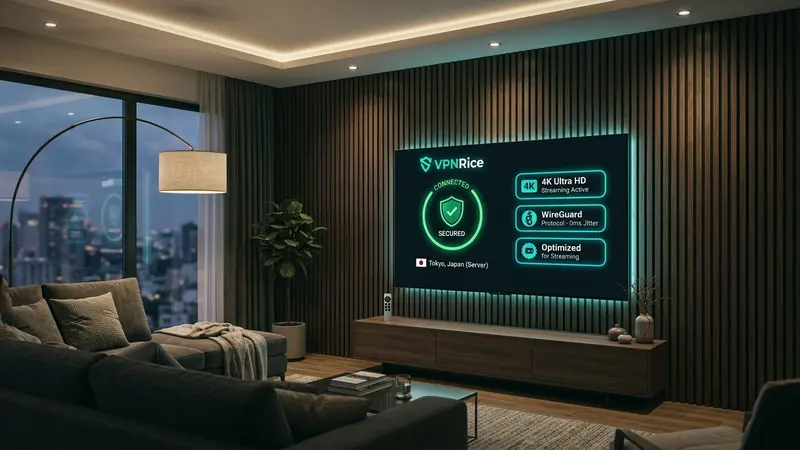
Streaming high-definition video, live sports broadcasts, and 4K HDR movies on a smart television should be an effortless weekend experience. However, routing television traffic through a virtual private network can sometimes introduce frustrating pauses, resolution drops, or persistent loading spinners. When a television begins buffering, viewers often assume their internet connection is fundamentally inadequate. In reality, video streaming performance over an encrypted tunnel depends heavily on protocol efficiency, hardware resource allocation on low-power television processors, and local home network hygiene.
Unlike interactive applications such as web browsing or competitive gaming, video playback relies on sustained throughput and jitter-free packet delivery. A connection that delivers impressive burst speeds on a momentary benchmark can still suffer severe playback stutter if packet loss forces frequent buffer underruns.
This guide breaks down the core technical reasons why VPN connections buffer on smart televisions and streaming media players, reviews official streaming bandwidth standards, and provides a clear optimization checklist to achieve smooth 4K playback.
Bandwidth baselines: What 4K streaming actually requires
Before reconfiguring network parameters or switching tunnel configurations, it is helpful to understand the actual throughput demanded by major streaming providers. Many users overestimate the raw megabits required while underestimating the impact of connection stability.
According to the official Netflix-recommended internet speeds documentation published by the Netflix Help Center, minimum sustained downstream bandwidth requirements scale according to display resolution:
| Quality tier | Resolution profile | Recommended download speed | Suggested VPN headroom |
|---|---|---|---|
| High definition (HD) | 720p video stream | 3 Mbps or higher | 10 Mbps sustained |
| Full high definition (FHD) | 1080p stream | 5 Mbps or higher | 15 Mbps sustained |
| Ultra high definition (UHD) | 4K UHD playback | 15 Mbps or higher | 25-30 Mbps sustained |
While 15 Mbps serves as the official threshold for 4K playback, streaming platforms utilize adaptive bitrate streaming (such as HLS or MPEG-DASH). These protocols dynamically package video into short chunks, typically between two and six seconds in duration. When an action scene featuring dense visual detail begins, the instantaneous bitrate can temporarily surge well above 25 Mbps. If a VPN tunnel exhibits latency spikes or temporary throughput dips during these bursts, the player depletes its cached playback buffer and freezes.
To ensure consistent 4K streaming without unexpected downscaling to 1080p, maintaining a stable downstream speed of at least 25 to 30 Mbps through your encrypted tunnel provides essential headroom.
Why VPNs buffer on smart TVs: The 4 technical bottlenecks
Understanding where bottlenecks occur makes troubleshooting straightforward. Encrypting traffic on a television involves constraints that do not exist on high-end laptops or desktop workstations.
1. Television processor limitations and encryption overhead
Most smart televisions and streaming media sticks operate on energy-efficient system-on-chip (SoC) architectures with limited CPU headroom. Heavy legacy cryptographic protocols that execute entirely in user-space require substantial CPU cycles to encrypt and decrypt incoming media packets. When video decoding hardware competes with intense cryptographic processing on a television processor, frames drop and network packets pile up in internal memory queues.
Selecting a modern, lightweight protocol solves this constraint. WireGuard was engineered from the ground up as a lean cryptographic tunnel capable of running smoothly on constrained embedded architectures as well as high-power servers, using modern primitives like ChaCha20-Poly1305. Because ChaCha20 runs exceptionally fast on ARM architectures without dedicated AES acceleration hardware, it preserves television processor cycles for media decoding.
2. Protocol transport: UDP versus TCP
Streaming performance is profoundly affected by whether your VPN encapsulates traffic over UDP or TCP. By securely encapsulating network packets over UDP transport, modern protocols avoid the unnecessary packet-ordering overhead imposed by older connection-oriented tunneling methods.
When a VPN relies on TCP encapsulation, an issue known as TCP-over-TCP meltdown occurs. Video streaming already operates over TCP or QUIC at the application layer. If an underlying VPN tunnel also enforces strict TCP packet retransmission, a single lost packet on an imperfect Wi-Fi link forces both layers to buffer, retransmit, and back off simultaneously, resulting in immediate playback stalls.
3. MTU misconfiguration and packet fragmentation
Every physical network enforces a Maximum Transmission Unit (MTU), representing the largest physical packet size that can transit without fragmentation (typically 1500 bytes on standard Ethernet). Adding VPN encryption headers increases packet size. If the resulting packet exceeds the path MTU, routers along the transit path must split each packet into multiple fragments.
Packet fragmentation doubles router packet handling workloads and substantially increases packet drop probabilities. If your streaming connection frequently stutters despite high speed tests, setting a slightly conservative MTU (such as 1280 or 1360 bytes) eliminates fragmentation across intermediary networks.
4. Local wireless interference
Smart televisions are frequently mounted flush against living room walls, positioned behind thick entertainment center cabinets, or tucked near gaming consoles and soundbars. This physical placement makes integrated television Wi-Fi antennas susceptible to severe signal attenuation. Operating on crowded 2.4 GHz frequencies causes packet collision and variable latency, undermining video buffer health.
5-step checklist to eliminate video buffering
To achieve flawless 4K playback on your smart television, apply the following proven configuration steps:
1. Select the geographically nearest VPN server
Latency increases with physical distance. Connecting to an overseas server across an ocean adds dozens of routing hops through international fiber cables, increasing packet jitter. Unless you specifically require content from an overseas catalog, connect to a server located in your own country or an adjacent metropolitan region. Shorter network paths provide significantly higher sustained throughput and faster video startup times.
2. Prefer a hardwired Ethernet connection or 5 GHz Wi-Fi
Whenever physically possible, connect your smart television or streaming box directly to your home router using an Ethernet cable. While many television Ethernet ports are rated at 100 Mbps rather than Gigabit speeds, a consistent 100 Mbps hardwired connection delivers virtually zero packet loss and rock-solid latency, outperforming an unstable wireless connection.
If cabling is not feasible, connect your television exclusively to your router's 5 GHz wireless band rather than the older 2.4 GHz band. The 5 GHz spectrum offers wider channel bandwidth and avoids interference from household appliances, baby monitors, and microwave ovens.
3. Configure split tunneling for bandwidth-heavy local apps
On Android TV and Google TV devices, the operating system provides native network filtering. According to official Android developer documentation for network connectivity, television platforms route all outbound traffic through the active tunnel by default unless customized app routing rules are configured.
By enabling split tunneling (called Disallowed apps in Android developer documentation), you can direct domestic video services, cloud gaming platforms, or local home media servers (such as Plex or Jellyfin) to route directly outside the encrypted tunnel. This reduces cryptographic processing load on your television processor and reserves encrypted bandwidth exclusively for applications that require privacy or access shielding.
4. Clear application cache and restart persistent workers
Smart television streaming applications accumulate extensive local cache data, including image previews, tracking scripts, and partial buffer chunks. Over weeks of daily use, this accumulated cache fragments television storage memory:
- On Google TV or Android TV, open Settings.
- Navigate to Apps and choose See all apps.
- Select your streaming application (such as Netflix or YouTube).
- Select Clear cache, followed by Force stop.
Restarting the application ensures a fresh media player instance and allocates full buffer memory for upcoming video streams.
5. Verify your external connection parameters
Before beginning a movie, verify your active network state. If you want to check what your connection looks like to the outside world before and after connecting, our What is my IP tool shows your visible IP address and location. Furthermore, testing your browser or streaming environment through our WebRTC leak test ensures that internal network identifiers remain protected during playback.
Troubleshooting built-in network checks
Most modern television streaming applications incorporate built-in network diagnostics. For example, if you encounter streaming difficulties in Netflix:
Within the application, access the side navigation menu using your television remote, select the Get Help section, and run Check your Network.
This diagnostic tool contacts internal content delivery edge servers directly, displays your active downstream connection speed, and verifies whether connection endpoints are reachable through your active tunnel.
When traveling during weekends or connecting through hotel television systems and public Wi-Fi, remember that a VPN encrypts the traffic between your device and the VPN server, so others on the same network cannot read it. Using dedicated applications optimized for television remote navigation, such as VPNRice for Android TV, provides robust encryption and smooth playback without complex manual configuration.