








Exclusive Offer
Get your Free 30 days access

Your Google account and Play Store profile act as a "control center" for most of the apps and services you use daily. However, in some cases, you may want to remove your account from your device or delete it completely for security, privacy, or changing needs.
Removing your Google account from your device or Play Store is actually quite quick, but before doing so, you should understand the accompanying effects. This article will help you understand how removing or deleting an account impacts apps, data, and related services, and guide you on how to do it safely.
Overview of Google Play Accounts
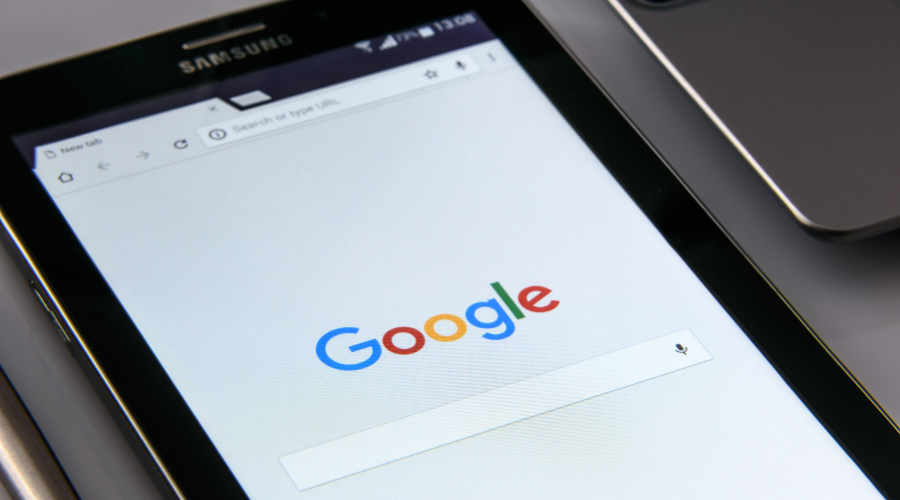
A Google account is not just for a single service but is the key to accessing a vast ecosystem. Therefore, before deleting or separating your account, you need to consider carefully to avoid losing important data or access to registered services.
What is a Google Play account?
In reality, there isn't a separate Google Play account — everything is based on a Google account. You need a Google account to use the Play Store, similar to Gmail, Google Drive, or YouTube. A single account can sync with all these services.
Additionally, you can use multiple Google accounts on the same device or create a separate account solely for downloading apps and managing Play Store transactions, keeping it separate from other activities.
What impact does deleting affect apps and transactions?
You cannot delete the Play Store without involving your Google account. In most cases, what users want is to remove the account from their Android device, not delete it completely.
When you remove the account from the device, you will lose the automatic login feature to the Play Store and related apps.
However, installed apps will still function normally, and you can still manually log back in when needed.
Conversely, completely deleting your Google account will have more serious consequences:
Loss of access to email, files, and personal data
Loss of subscriptions and purchased content
Inability to use Google services with that account anymore
Although it may be possible to recover the account in some cases, there is no guarantee that all data will be recovered.
How to remove a Google account from a device
You can delete the account directly on your Android phone by going to Settings → Accounts → select your Google account → Delete. After confirmation, the account will be removed from the device and will no longer automatically log in.
If you don't have access to the device, you can still remotely sign out of the account through the Google account management page using a web browser, then select the device and sign out.
Remove access from third-party apps
In addition to deleting accounts from your device, you can also control your privacy by revoking access to apps linked to your Google account. This helps limit data sharing between Google and external services.
Before doing this, you should ensure you have set up a different login method; otherwise, you may lose access to related accounts.
Manage multiple accounts on the Play Store
The Play Store allows you to use multiple Google accounts simultaneously on one device. You can easily switch between accounts or add new accounts for different purposes such as work, personal, or shopping.
Delete search history on the Play Store
Delete search history can help:
Protect your privacy
Reduce unwanted suggestions
Refresh your user experience
Simply go to Settings in the Play Store and select delete device search history.
Some common issues
In some cases, you may be unable to delete an account due to:
Lack of administrator privileges on the device
The device is company-owned
It is controlled by the Parental Link feature
These restrictions usually require permission from the administrator or primary owner of the device to change.